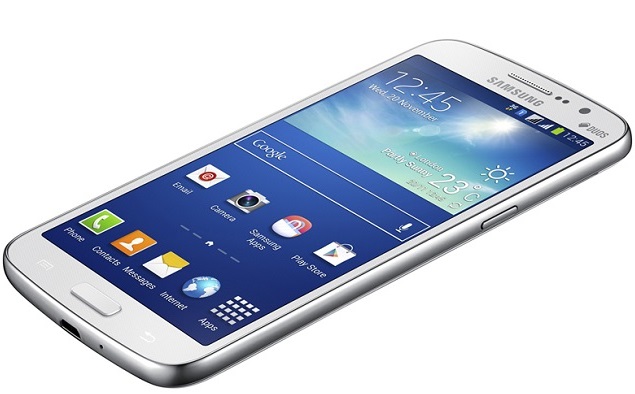
The Samsung Galaxy Grand 2 released back in January 2014, after being announced earlier in 2013. It is one of the best entry-level devices from Samsung right now. It has a 5.25inch TFT capacitive display with 16M colors. The 5.25 inch screen comes with a 68.7% screen-to-body ratio and has a 720×1280 pixels resolution and comes with 280ppi pixel density.
It was released initially on the Android OS V4.3 Jelly Bean platform and later upgraded to Android OS v4.4.2 KitKat. It has a Quad Core Cortex A7 1.2GHz processor working on a Qualcomm MSM8226 Snapdragon 400 chipset. It has an Adreno 305GPU. The device has an internal storage of 8GB and 1.5GB of RAM.
In the camera aspect, the device has a rear 8MP shooter with 3264×2448 pixels with autofocus and LED flash. The camera supports other basic features like Geo-tagging, face/smile detection and touch focus. The camera can record 1080p Full-HD recording at 30 frames per second. It supports stereo sound and includes a 2MP front camera. Various connectivity features include Bluetooth v4.0 support, Wi-Fi 820.11, GLONASS, and A-GPS, 4G LTE, and 3G.
While most Galaxy Grand 2 devices have been now been updated to Android v4.4.2 and some even v4.4.4, you can get 100% from the handset by gaining access to flashing the root packages. They are provided by Chainfire and are currently available on the developer’s website.
Firstly, the root package needs to be downloaded on your device. In order to learn about your phone model, you can figure it out from Settings>About Phone. You need to extract it in order to get the file .tar.md5 extension and then store it in your desktop for smooth access. If you don’t have them already, you’ll need to download and properly install the Samsung USB drivers on your computer.
Launch Odin v3.09 by right-clicking on the icon and then ‘run as administrator’. Once Odin is running, choose PDA and select the root file that you extracted previously. You will also need to check the boxes beside Auto Reboot and F. Reset Time. Make sure that the Re-Partition option is not ticked. After this, switch of your device by pressing Home, Power and Volume Down buttons together.
After this, you need to boot into the download mode by holding the Volume Up button once the warning message is displayed. You must now wait for Odin to detect your device, once you have connected it to PC through USB. Once that is done, click on Start button in Odin in order to start the flashing process.
Once complete, the device will reboot, and Odin will display a Green ‘Pass’ message. You should check out your App drawer and notice if SuperSU app is present.
Stay tuned for more updates and info on the Samsung Galaxy Grand 2!